> ## Documentation Index
> Fetch the complete documentation index at: https://docs.usefluency.com/llms.txt
> Use this file to discover all available pages before exploring further.
# PII Redaction
Workspace admins can control which types of personally identifiable information (PII) Fluency redacts from captured activity, keeping sensitive data protected across your organization.
## How to configure PII redaction
1. **Open the Fluency Portal.** Navigate to [dashboard.usefluency.com](http://dashboard.usefluency.com) to launch the Fluency portal. You must be a workspace admin to do this. Contact your IT team if you're unsure.
2. **Go to Settings.** Click the settings icon in the left sidebar.
3. **Open the PII Protection tab.** Find it in the sidebar under the organization category.
4. **Select the PII you want redacted.** Toggle the relevant PII on or off, then click **Save changes**. You can choose between US, UK, AUS, and General options.
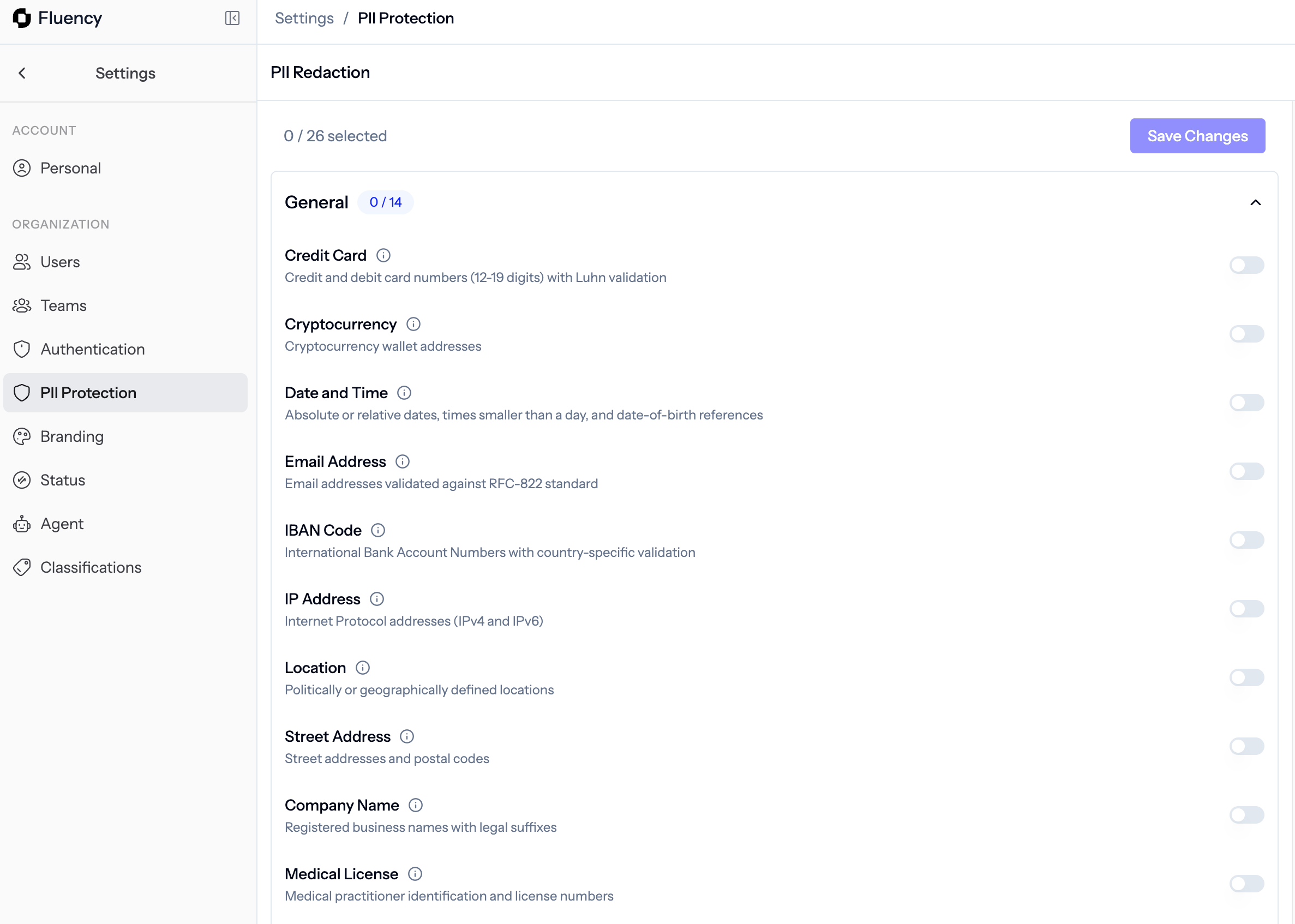 If you need a specific type of PII redacted that isn't listed, contact the Fluency team and we'll look at how best to include it.