> ## Documentation Index
> Fetch the complete documentation index at: https://docs.usefluency.com/llms.txt
> Use this file to discover all available pages before exploring further.
# Authentication
> Connect Microsoft Entra ID so Windows agents sign in silently and users show up in Fluency automatically.
**Authentication** is where **admins** connect Microsoft Entra ID to Fluency. Once connected, Entra-joined Windows devices sign in silently, so users start capturing without a browser prompt.
Open [app.usefluency.com](https://app.usefluency.com) → **Settings** → **Authentication**.
 This page covers the product UI. For the full architecture, consent scopes, and Windows device requirements, see [Silent Authentication via Entra ID](/silent-authentication-entra-id).
## What you'll see
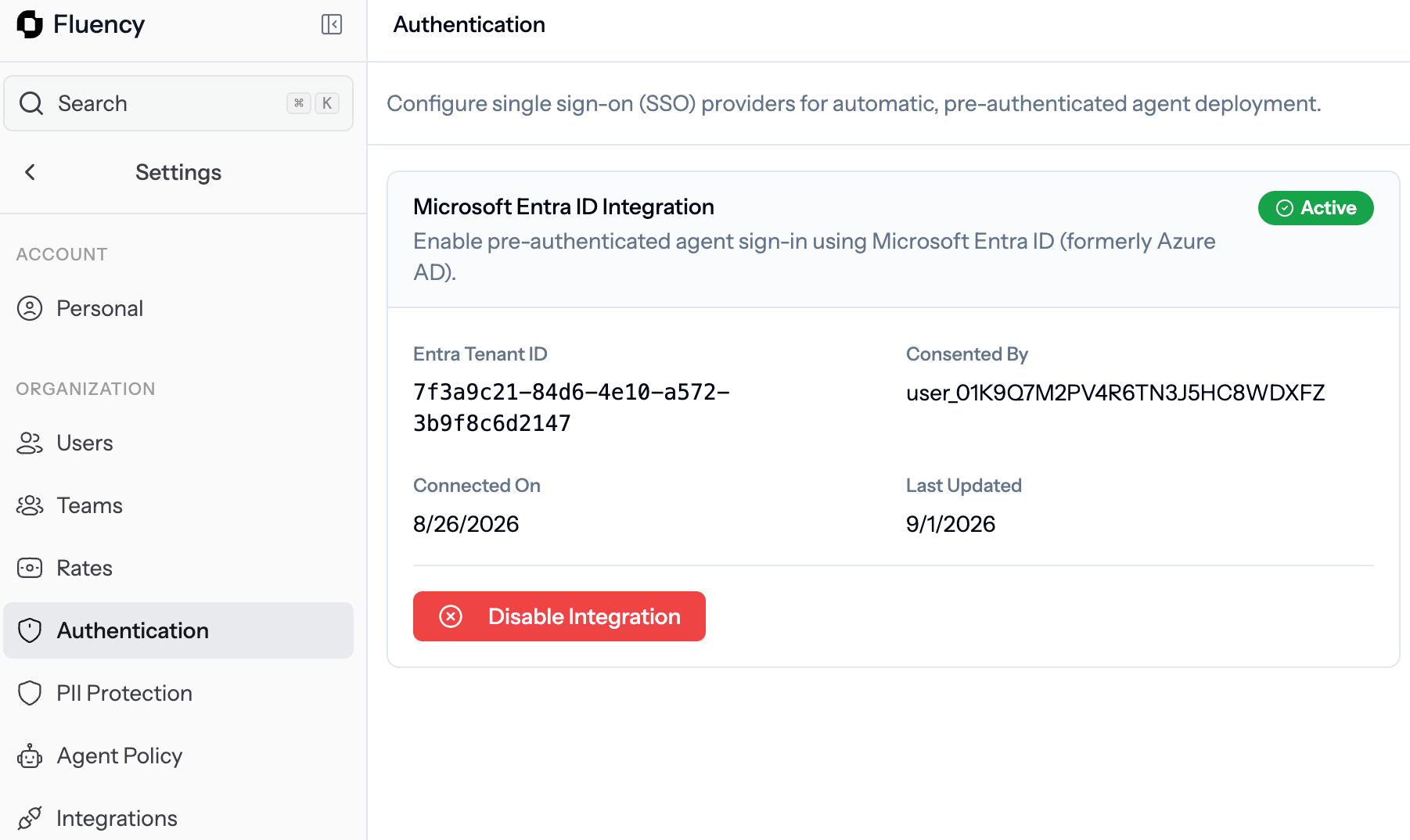
When Entra ID is connected, the card shows:
| Field | What it means |
| ----------------------- | ------------------------------------------------ |
| **Microsoft Entra ID** | The integration status (Active or Disconnected). |
| **Tenant** | Your Entra tenant identifier. |
| **Consented by** | The admin who accepted the Entra consent prompt. |
| **Connected / Updated** | When the connection was made and last refreshed. |
| **Disable integration** | Turns off silent sign-in for new devices. |
## Connect Entra ID
Go to **Settings** → **Authentication**.
Accept the Entra consent prompt. Fluency requests only `openid`, `profile`, and `email`. No mailbox, files, or calendar access.
Entra-joined Windows devices enroll without a browser prompt. See [Silent Authentication](/silent-authentication-entra-id) and [IT deploy](/it-deploying-fluency-agent) for the rollout steps.
Open [Users](/settings-users) and confirm your fleet shows **Capturing**.
Silent sign-in only works on Entra-joined Windows devices. macOS and non-Entra Windows devices fall back to a one-time browser sign-in.
## Disable the integration
Click **Disable integration** to turn off silent sign-in.
* New devices will no longer enroll silently.
* Existing devices keep working until their tokens expire.
* Users can still sign in with browser OAuth.
Disabling Entra ID does not sign anyone out immediately. If you need to cut access now, revoke the token in Entra as well.
## Related
Architecture, scopes, and device requirements.
Roll out to Windows and macOS fleets.
Confirm users are capturing after connect.
Control what Fluency captures.
This page covers the product UI. For the full architecture, consent scopes, and Windows device requirements, see [Silent Authentication via Entra ID](/silent-authentication-entra-id).
## What you'll see
When Entra ID is connected, the card shows:
| Field | What it means |
| ----------------------- | ------------------------------------------------ |
| **Microsoft Entra ID** | The integration status (Active or Disconnected). |
| **Tenant** | Your Entra tenant identifier. |
| **Consented by** | The admin who accepted the Entra consent prompt. |
| **Connected / Updated** | When the connection was made and last refreshed. |
| **Disable integration** | Turns off silent sign-in for new devices. |
## Connect Entra ID
Go to **Settings** → **Authentication**.
Accept the Entra consent prompt. Fluency requests only `openid`, `profile`, and `email`. No mailbox, files, or calendar access.
Entra-joined Windows devices enroll without a browser prompt. See [Silent Authentication](/silent-authentication-entra-id) and [IT deploy](/it-deploying-fluency-agent) for the rollout steps.
Open [Users](/settings-users) and confirm your fleet shows **Capturing**.
Silent sign-in only works on Entra-joined Windows devices. macOS and non-Entra Windows devices fall back to a one-time browser sign-in.
## Disable the integration
Click **Disable integration** to turn off silent sign-in.
* New devices will no longer enroll silently.
* Existing devices keep working until their tokens expire.
* Users can still sign in with browser OAuth.
Disabling Entra ID does not sign anyone out immediately. If you need to cut access now, revoke the token in Entra as well.
## Related
Architecture, scopes, and device requirements.
Roll out to Windows and macOS fleets.
Confirm users are capturing after connect.
Control what Fluency captures.