> ## Documentation Index
> Fetch the complete documentation index at: https://docs.usefluency.com/llms.txt
> Use this file to discover all available pages before exploring further.
# Rates
> Set the hourly rate Fluency uses to price time savings, process cost, and opportunity value across your organization.
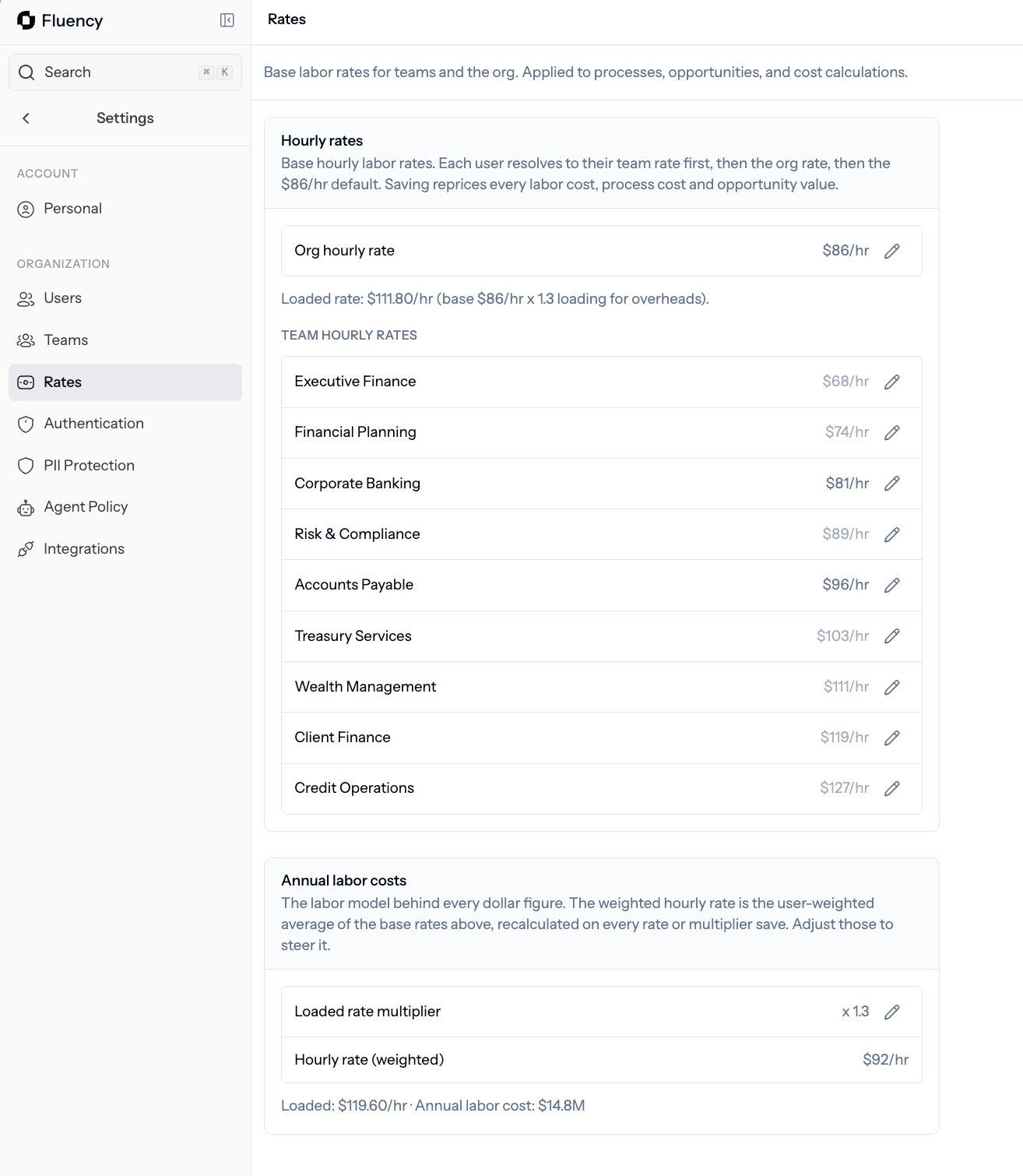
**Rates** is where **admins** tell Fluency how much an hour of work costs. Fluency uses this number everywhere you see dollars: process cost and opportunity impact.
Open [app.usefluency.com](https://app.usefluency.com) → **Settings** → **Rates**.
 ## Organization rate
Set one rate for the whole organization. Fluency uses it as the default for every team unless you override it.
| Field | What it means |
| --------------- | --------------------------------------------------------------------------------------------------------------------------------- |
| **Hourly rate** | The base cost of an hour of work (think salary per hour). |
| **Loaded rate** | The base rate plus overhead (benefits, taxes, tools). Fluency shows the loaded number it uses in pricing, for example base × 1.3. |
Use the loaded rate you would use in a business case, not just salary. It gives more accurate cost savings.
Saving new rates reprices every labor cost, process cost, and opportunity value in Fluency, including historical ones. Change rates when your finance assumptions actually change.
## Team overrides
Some teams cost more per hour than others. You can override the organization rate for any team, and Fluency will use that number when it prices opportunities for that team.
Use overrides when:
* A specialist team (legal, engineering, clinical) costs materially more than the org average.
* A shared services or offshore team costs less.
* You want cost savings to reflect the real economics of each group.
Leaders viewing Opportunities do not need to touch Rates. They just see the effect in cost savings.
## What happens when you save
Update the organization rate or a team override.
Fluency reprices every process, opportunity, and KPI using the new number.
Open the [Opportunities](/understanding-opportunities) view to confirm the new dollar figures look right.
## Related
Where priced impact shows up.
Set rate overrides per team.
See who is being measured.
Get activity flowing in the first place.
## Organization rate
Set one rate for the whole organization. Fluency uses it as the default for every team unless you override it.
| Field | What it means |
| --------------- | --------------------------------------------------------------------------------------------------------------------------------- |
| **Hourly rate** | The base cost of an hour of work (think salary per hour). |
| **Loaded rate** | The base rate plus overhead (benefits, taxes, tools). Fluency shows the loaded number it uses in pricing, for example base × 1.3. |
Use the loaded rate you would use in a business case, not just salary. It gives more accurate cost savings.
Saving new rates reprices every labor cost, process cost, and opportunity value in Fluency, including historical ones. Change rates when your finance assumptions actually change.
## Team overrides
Some teams cost more per hour than others. You can override the organization rate for any team, and Fluency will use that number when it prices opportunities for that team.
Use overrides when:
* A specialist team (legal, engineering, clinical) costs materially more than the org average.
* A shared services or offshore team costs less.
* You want cost savings to reflect the real economics of each group.
Leaders viewing Opportunities do not need to touch Rates. They just see the effect in cost savings.
## What happens when you save
Update the organization rate or a team override.
Fluency reprices every process, opportunity, and KPI using the new number.
Open the [Opportunities](/understanding-opportunities) view to confirm the new dollar figures look right.
## Related
Where priced impact shows up.
Set rate overrides per team.
See who is being measured.
Get activity flowing in the first place.