> ## Documentation Index
> Fetch the complete documentation index at: https://docs.usefluency.com/llms.txt
> Use this file to discover all available pages before exploring further.
# Users
> See everyone in your workspace, check which desktop agents are capturing, and quickly spot users who need attention.
The **Users** page shows everyone in your workspace and the status of each Fluency desktop agent. Admins use it to confirm the rollout is capturing, find users who need help, and invite other admins.
Open [app.usefluency.com](https://app.usefluency.com) → **Settings** → **Users**.
 ## The users table
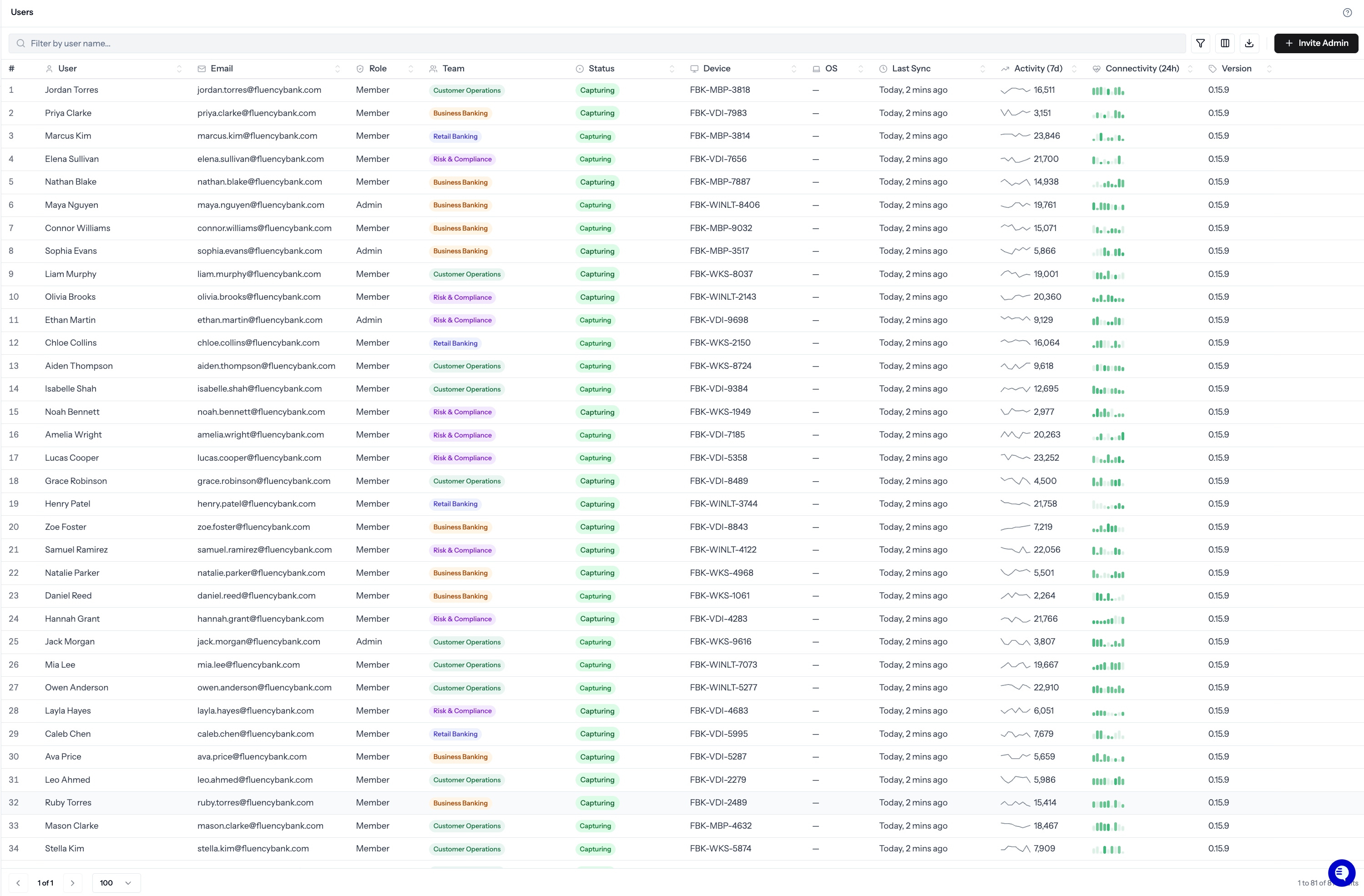
The table lists up to 100 users per page. Use the filter box to search by name or email, and the column picker to show or hide optional columns.
Select **Invite Admin** to add someone who can view Fluency without running the desktop agent.
| Column | What it shows |
| ---------------- | ---------------------------------------------------------------------- |
| **User** | The person's display name. |
| **Email** | The email they sign in with. |
| **Role** | Workspace role, such as Admin or Member. |
| **Team** | The team they belong to. |
| **Status** | Current agent status, such as **Capturing** or **Outside work hours.** |
| **Device** | A unique identifier for the user's computer. |
| **Last sync** | The last time an event was captured from that computer. |
| **Activity** | Average events captured per day over the last week. |
| **Version** | The version of the Fluency desktop agent installed. |
| **Connectivity** | Agent check-ins over the last 24 hours. |
## Agent statuses
Most users show **Capturing**. If something needs attention, the status tells you what to do.
The agent is running and capturing activity.
**What to do:** Nothing.
The user paused capture themselves. It resumes automatically at the end of the pause duration set in [Agent Policy](/configuring-agent-settings).
**What to do:** Nothing, capture resumes on its own.
An admin paused this user.
**What to do:** Resume the user from the row menu when you're ready.
The current time is outside the observation window set in [Agent Policy](/configuring-agent-settings).
**What to do:** Nothing, unless the window is set incorrectly.
The agent is missing macOS Screen Recording permission, or the equivalent on other systems.
**What to do:** Ask the user to grant the required permissions so the agent can capture.
The agent hasn't checked in during hours when it should be running.
**What to do:** Check that the device is on and the agent is installed.
The user's device is enrolled but the agent hasn't checked in yet.
**What to do:** Ask the user to launch the Fluency agent on their computer.
The user is signed out, or hasn't installed the agent.
**What to do:** Ask them to sign in or install the agent.
### How Fluency picks a status
The agent checks in every few seconds while it's running. Fluency combines those check-ins with your observation window to pick the right status:
* Devices that are off **outside** the observation window aren't flagged as a problem.
* **Offline** only applies **during** hours when the agent should be running.
* Issues that need action, like **Permission required**, show up at any time.
* **Paused by admin** takes priority over other statuses.
* The observation window respects timezones and can cross midnight. See [Agent Policy](/configuring-agent-settings).
Leaders don't manage this table, they see team activity on Overview and Work Explorer. IT installs the agent, and admins use this page to confirm the rollout is capturing.
## Related
Observation window, pause duration, and exclusions.
Installers, permissions, and network allowlists.
Group users so activity rolls up correctly.
Control what the agent redacts before it leaves the device.
## The users table
The table lists up to 100 users per page. Use the filter box to search by name or email, and the column picker to show or hide optional columns.
Select **Invite Admin** to add someone who can view Fluency without running the desktop agent.
| Column | What it shows |
| ---------------- | ---------------------------------------------------------------------- |
| **User** | The person's display name. |
| **Email** | The email they sign in with. |
| **Role** | Workspace role, such as Admin or Member. |
| **Team** | The team they belong to. |
| **Status** | Current agent status, such as **Capturing** or **Outside work hours.** |
| **Device** | A unique identifier for the user's computer. |
| **Last sync** | The last time an event was captured from that computer. |
| **Activity** | Average events captured per day over the last week. |
| **Version** | The version of the Fluency desktop agent installed. |
| **Connectivity** | Agent check-ins over the last 24 hours. |
## Agent statuses
Most users show **Capturing**. If something needs attention, the status tells you what to do.
The agent is running and capturing activity.
**What to do:** Nothing.
The user paused capture themselves. It resumes automatically at the end of the pause duration set in [Agent Policy](/configuring-agent-settings).
**What to do:** Nothing, capture resumes on its own.
An admin paused this user.
**What to do:** Resume the user from the row menu when you're ready.
The current time is outside the observation window set in [Agent Policy](/configuring-agent-settings).
**What to do:** Nothing, unless the window is set incorrectly.
The agent is missing macOS Screen Recording permission, or the equivalent on other systems.
**What to do:** Ask the user to grant the required permissions so the agent can capture.
The agent hasn't checked in during hours when it should be running.
**What to do:** Check that the device is on and the agent is installed.
The user's device is enrolled but the agent hasn't checked in yet.
**What to do:** Ask the user to launch the Fluency agent on their computer.
The user is signed out, or hasn't installed the agent.
**What to do:** Ask them to sign in or install the agent.
### How Fluency picks a status
The agent checks in every few seconds while it's running. Fluency combines those check-ins with your observation window to pick the right status:
* Devices that are off **outside** the observation window aren't flagged as a problem.
* **Offline** only applies **during** hours when the agent should be running.
* Issues that need action, like **Permission required**, show up at any time.
* **Paused by admin** takes priority over other statuses.
* The observation window respects timezones and can cross midnight. See [Agent Policy](/configuring-agent-settings).
Leaders don't manage this table, they see team activity on Overview and Work Explorer. IT installs the agent, and admins use this page to confirm the rollout is capturing.
## Related
Observation window, pause duration, and exclusions.
Installers, permissions, and network allowlists.
Group users so activity rolls up correctly.
Control what the agent redacts before it leaves the device.