.svg?fit=max&auto=format&n=9mgYzkCsWGfCgDGh&q=85&s=4fd670d691aa6a1a77dbfa0ed4830fb1)

Observation window
The observation window controls when the desktop agent is allowed to capture screen activity. Outside the window the desktop agent does not capture activity.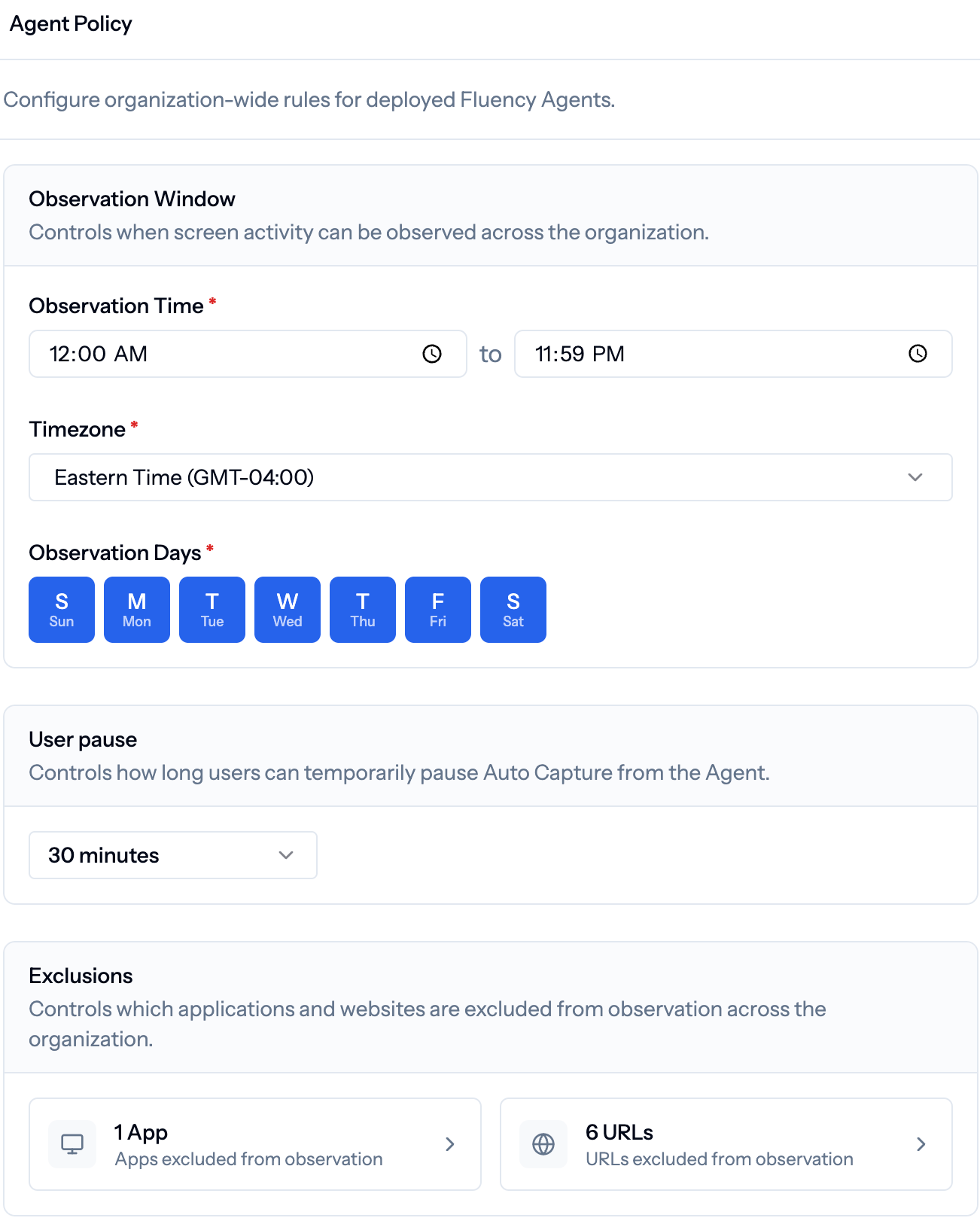
Observation Window: set the daily time range, timezone, and which days of the week the Fluency Agent is allowed to capture.
Individual Exceptions
The above settings are for everyone in your observed user cohort. If you want to set up individual exceptions for specific users this can be done. Navigate to the Users tab in settings and then click onto a specific user. If you scroll down you can toggle on the ability to have custom observation hours for that user and change the settings from there.User pause duration
Users can pause their own agent from the tray icon (for a private meeting, personal browsing, etc.). This setting is how long that pause lasts before capture resumes automatically.- Typical values: 15, 30, or 60 minutes.
- An admin pause from the Users page is separate and doesn’t expire on this timer.
Exclusions
Exclude specific applications and URLs so the agent never captures them, even inside the observation window. Use this for HR systems, personal banking, or any tool that shouldn’t be recorded.1
Open Exclusions
Scroll to Exclusions on the Agent Policy page.
2
Add an application or URL
Enter the app name (as it appears on the device) or the URL pattern. The header shows a live count of excluded apps and URLs.
3
Save
Save your changes. Agents pick up the new exclusions on their next policy fetch.
Related
Users
Confirm agents are capturing after a policy change.
PII Protection
Choose which types of PII are redacted from captures.
Deploy the agent
Roll out Fluency to Windows and macOS fleets.
Authentication
Connect Entra ID for silent sign-in.