.svg?fit=max&auto=format&n=9mgYzkCsWGfCgDGh&q=85&s=4fd670d691aa6a1a77dbfa0ed4830fb1)

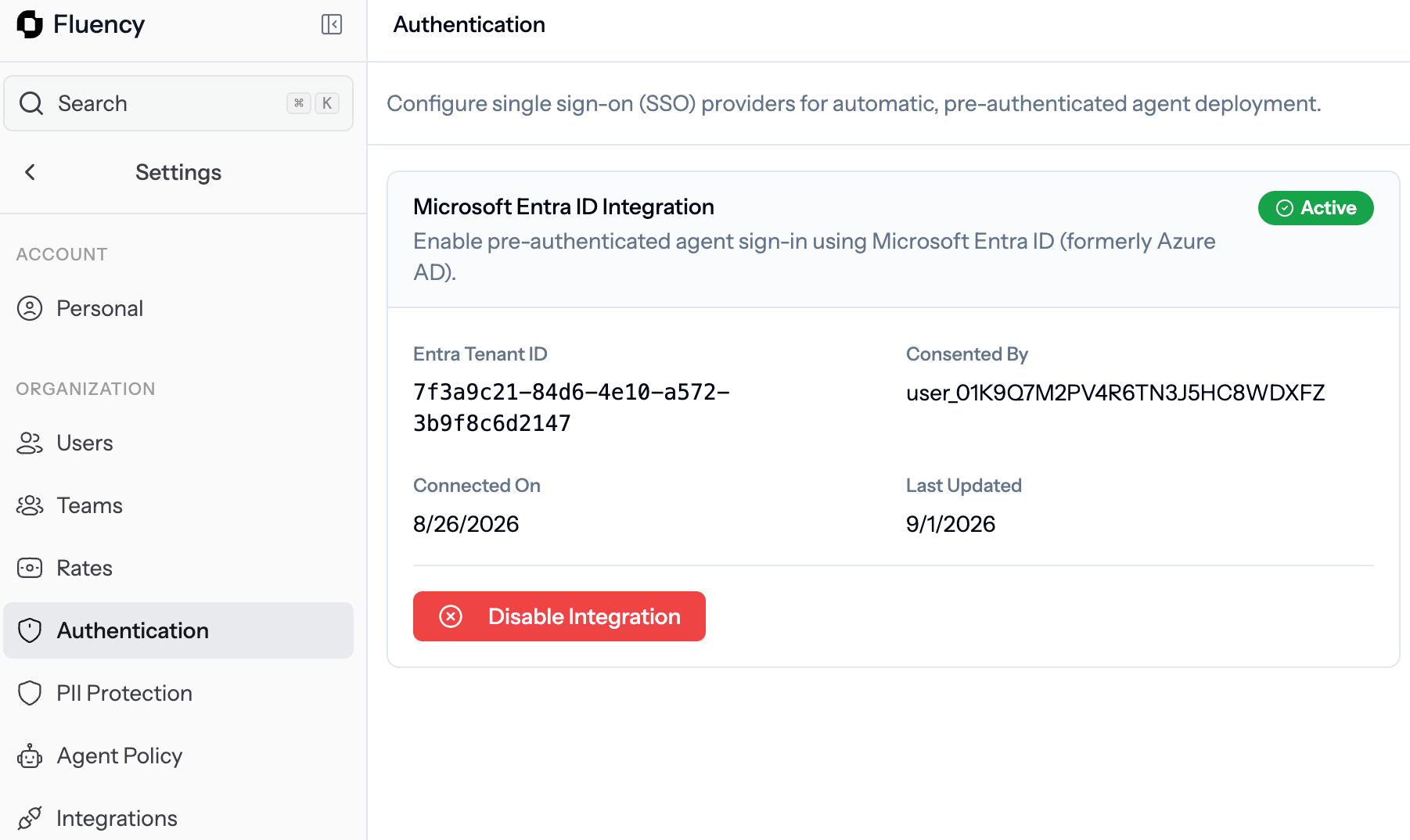
Authentication: connect Microsoft Entra ID so Windows agents sign in silently, and see tenant, consent, and connection status at a glance.
This page covers the product UI. For the full architecture, consent scopes, and Windows device requirements, see Silent Authentication via Entra ID.
What you’ll see
When Entra ID is connected, the card shows:Connect Entra ID
1
Open Authentication
Go to Settings → Authentication.
2
Click Connect Microsoft Entra ID
Accept the Entra consent prompt. Fluency requests only
openid, profile, and email. No mailbox, files, or calendar access.3
Deploy the agent to Windows devices
Entra-joined Windows devices enroll without a browser prompt. See Silent Authentication and IT deploy for the rollout steps.
4
Verify users are capturing
Open Users and confirm your fleet shows Capturing.
Disable the integration
Click Disable integration to turn off silent sign-in.- New devices will no longer enroll silently.
- Existing devices keep working until their tokens expire.
- Users can still sign in with browser OAuth.
Related
Silent Authentication
Architecture, scopes, and device requirements.
Deploy the agent
Roll out to Windows and macOS fleets.
Users
Confirm users are capturing after connect.
PII Protection
Control what Fluency captures.